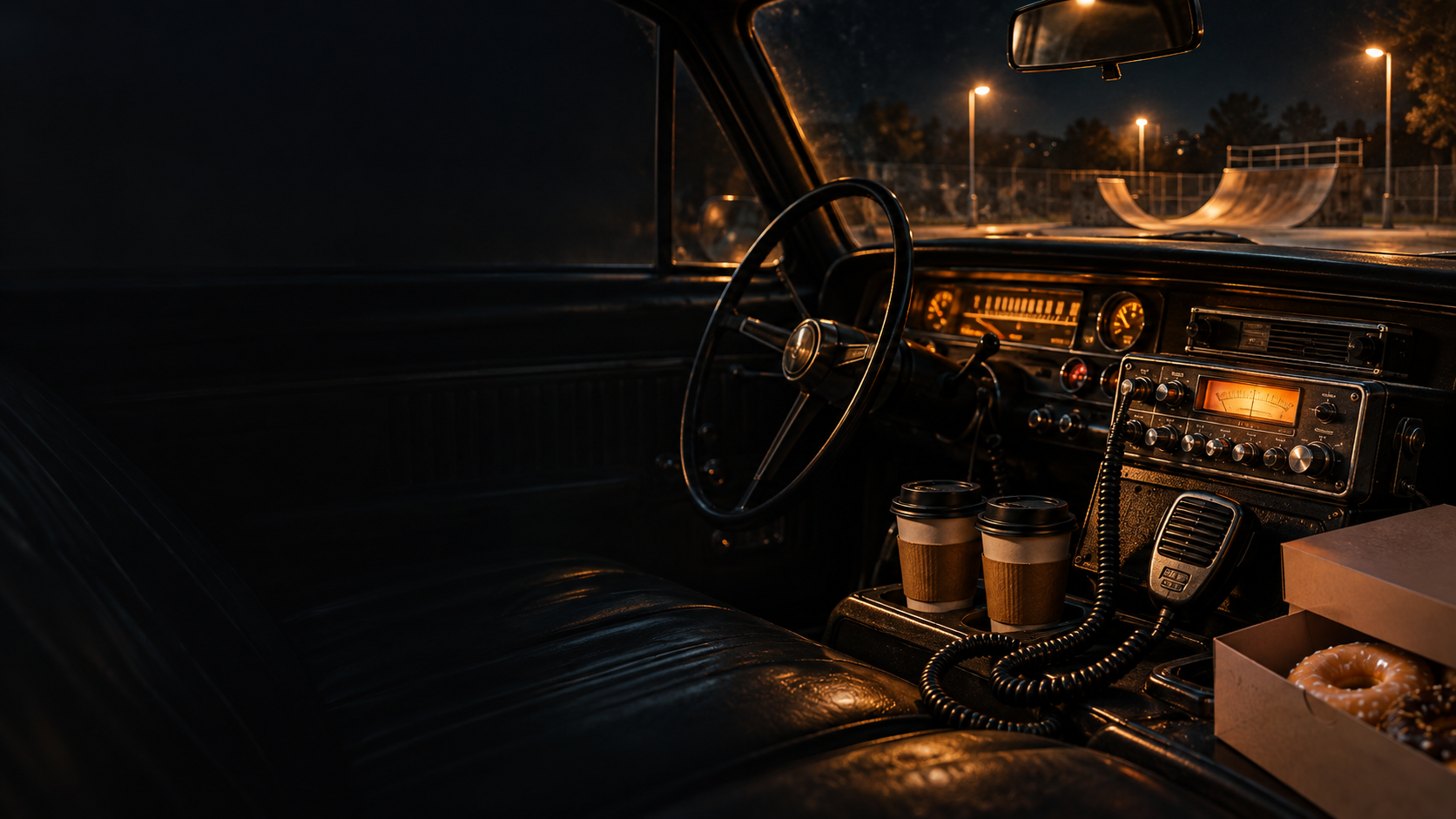
Start with a clear line.
Record the actor at a consistent microphone distance and keep a clean original. A dispatch voice often suggests a limited frequency range and controlled dynamics. Those are general production choices, not a description of BarkerBox’s internal processing. The message must still be easy to understand over ambience and other voices.
Shape it in context.
Put BarkerBox on the spoken track in a compatible host, choose Dispatch Radio, and compare the original with the processed line at a similar listening level. Adjust the available controls by ear, then audition the line with the scene’s music, effects, and other dialogue. Keep the clean take so you can revise the balance later.
Hear the original and processed lines.
Dispatch Radio comes first. The five other pairs help you decide whether the scene needs a different voice character. These are prepared recordings, not live microphone processing in the browser. Start at a low volume; the examples can have different playback levels.
Dispatch Radio
All units, listen up. Narrow radio tone without losing the message.
Megaphone
Handheld bite. Turn a polite announcement into something that cuts through the crowd.
Overhead PA
Ladies and gentlemen… Vintage cabin-announcement character, ready for takeoff.
Sideshow Barker
Midway grit and carnival character. Step right up and hear the pitch.
Horn-on-Mic
A little too close for comfort. Focused horn character with an unruly edge.
Stadium PA
Movie-ballpark character. A bigger announcement for the cheap seats.
Check the Mac beta.
BarkerBox is a $19 early-access beta for Apple Silicon Macs running macOS 27 or later. The Mac download includes Audio Unit, VST3, and a standalone app. Windows and Linux builds are still being tested and are not included. Check the full requirements and purchase details on the official BarkerBox page.